Chords
Chord Transposer
Move a song’s chords to any key, with capo positions taken into account.
- Guitar
- Ukulele
- Banjo
- Bass

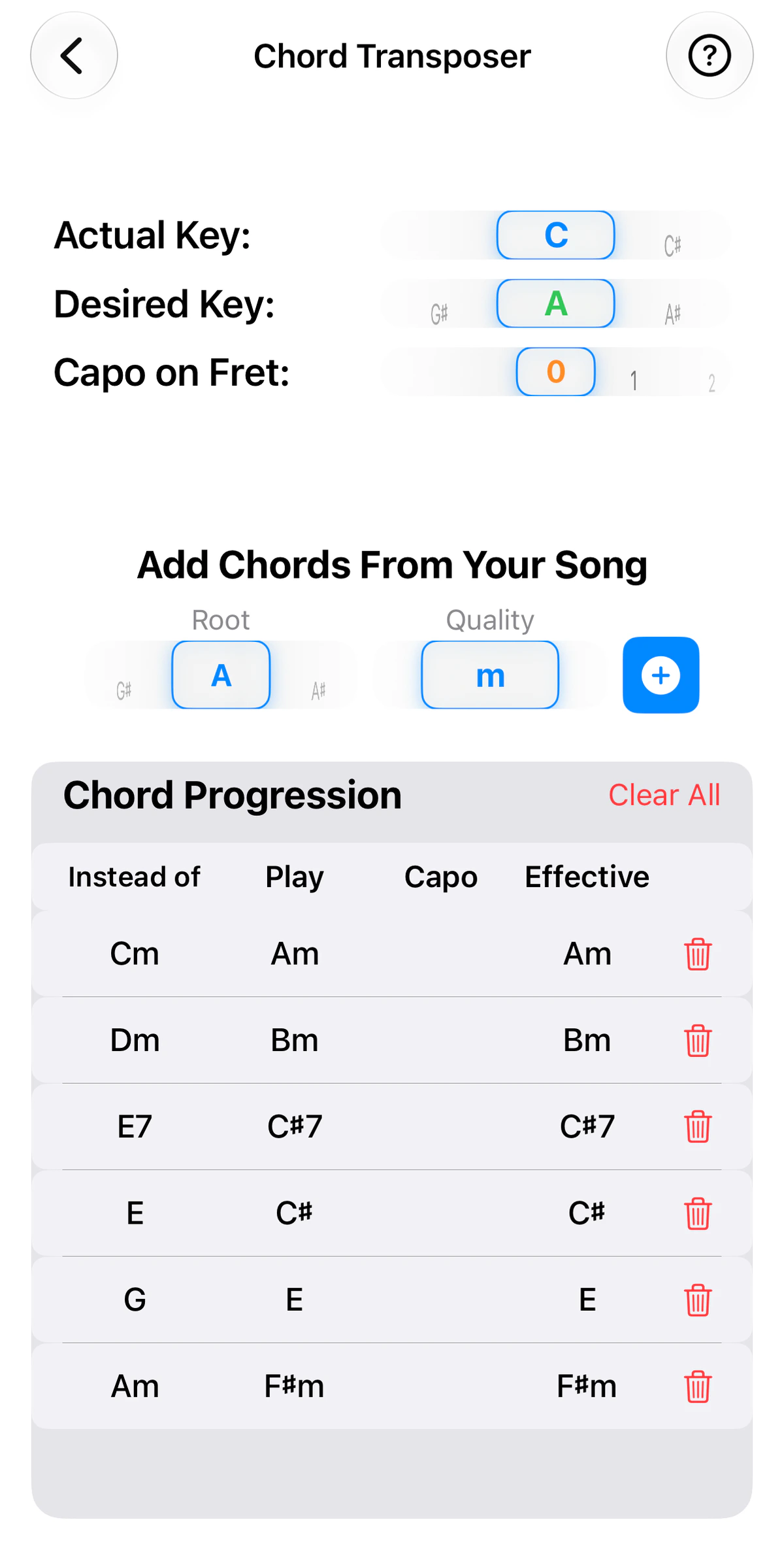
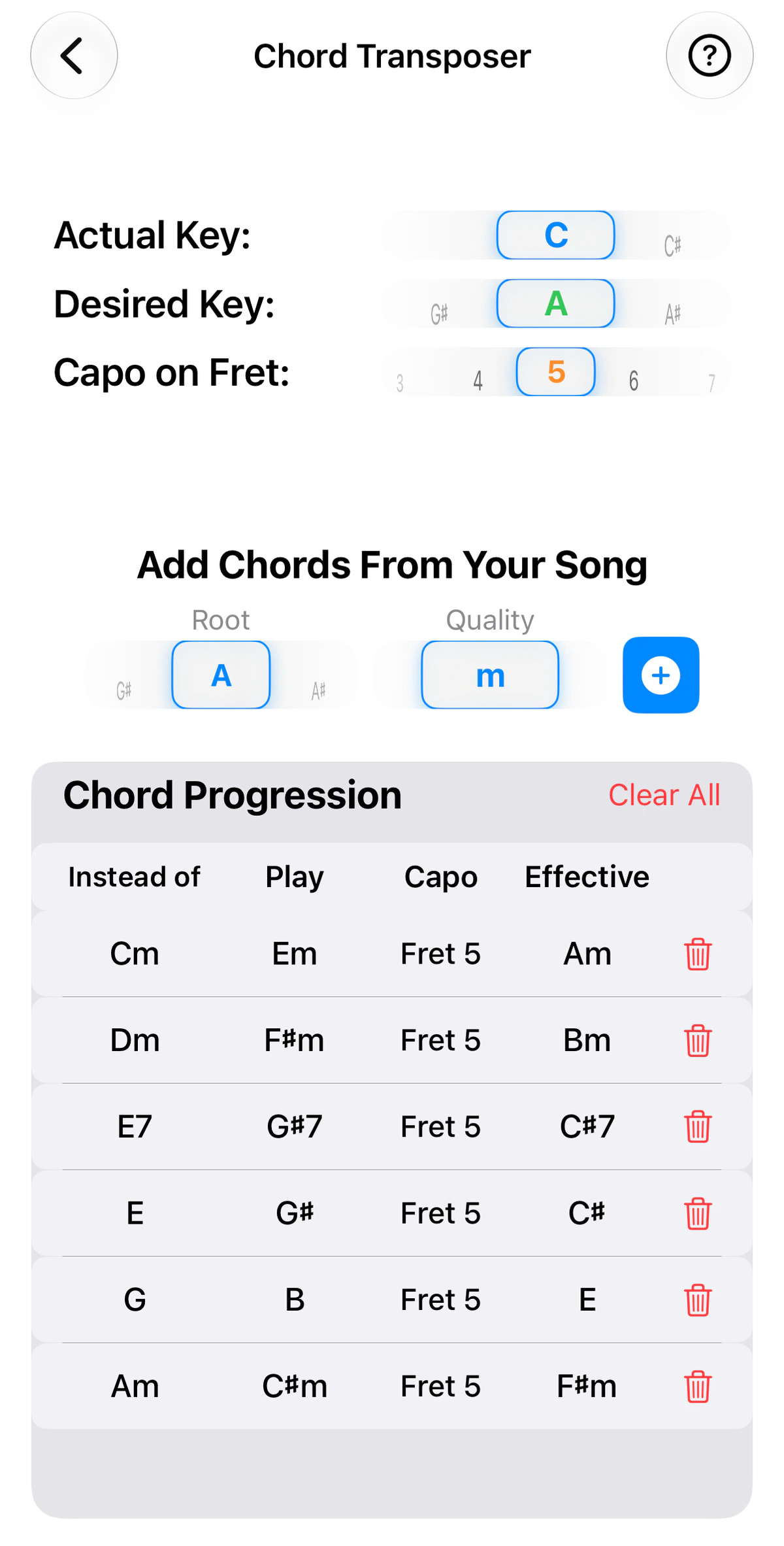
The Chord Transposer takes the chords of a song and rewrites them in another key, with an optional capo so the shapes you play stay easy.
Setting it up
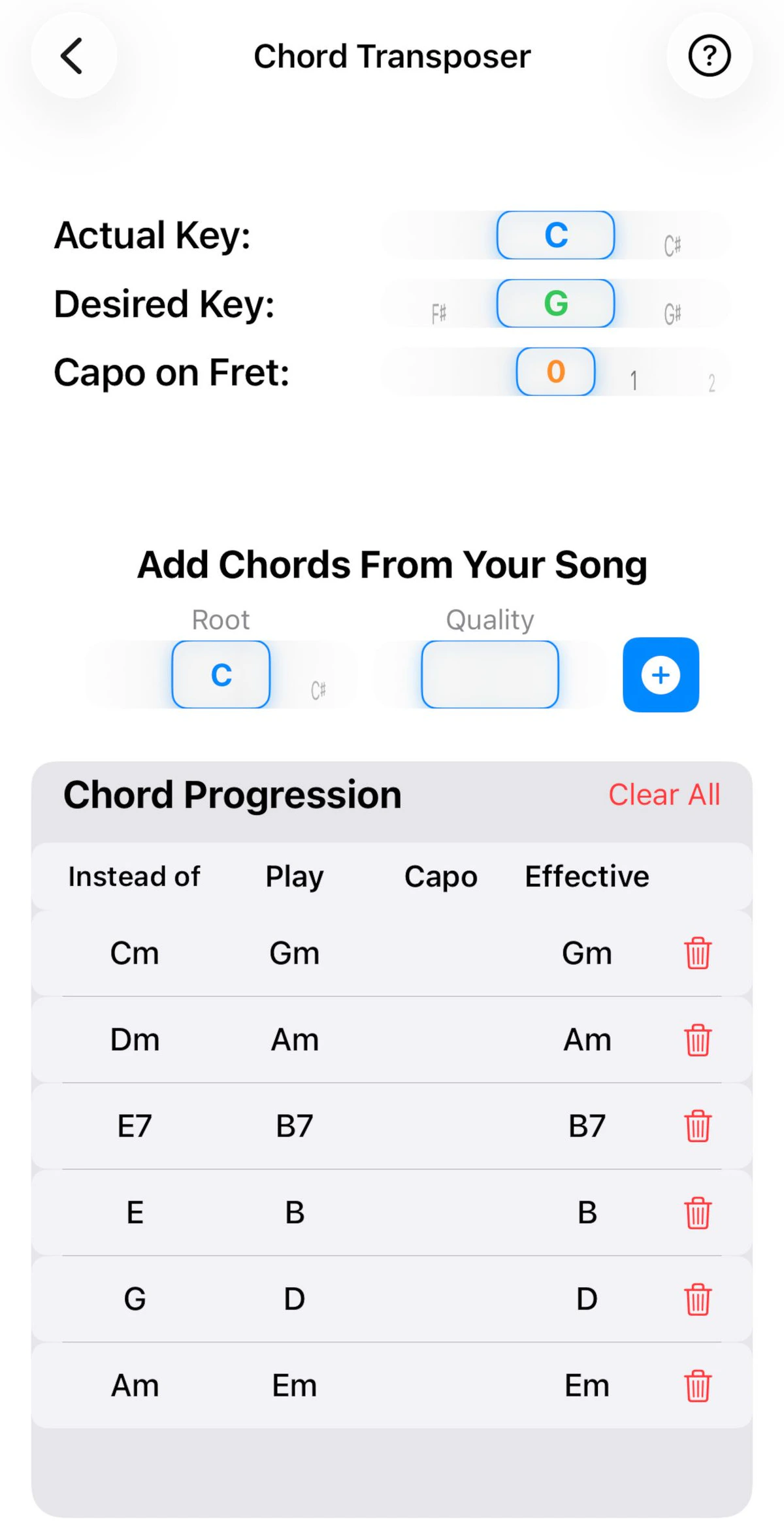
Three controls sit at the top:
- Actual Key: the key the song is in now.
- Desired Key: the key you want to play or sing it in.
- Capo on Fret: where your capo is. Leave it on 0 for no capo.
Use it to suit a singer’s range, or to move a song somewhere with friendlier shapes.
Add chords from your song
Under Add Chords From Your Song, pick a Root and a Quality (for example A and m for Am), then tap the + button to add it to the Chord Progression. Add the chords in the order they appear in the song. Use the trash can beside a chord to remove it, or Clear All to start again.
Reading the progression
Each chord gets a row with four columns:
- Instead of: the chord as it is in the song’s original key.
- Play: the chord to play now.
- Capo: the fret of your capo, when you have set one.
- Effective: the chord you will actually hear.
With no capo, Play and Effective are the same. In the first screenshot a song in C is moved to G, so Cm, Dm, E7, E, G, Am become Gm, Am, B7, B, D, Em.
Capo
Set the capo and GTK recalculates the chords to play, so the song still sounds in the key you want. Play now shows the shapes to finger, and Effective shows what comes out once the capo is on.
Example: the same song moved from C to A. With no capo you play Am, Bm, C♯7, C♯, E and F♯m. With a capo on fret 5 you play Em, F♯m, G♯7, G♯, B and C♯m, and they still sound as Am, Bm, C♯7, C♯, E and F♯m.